
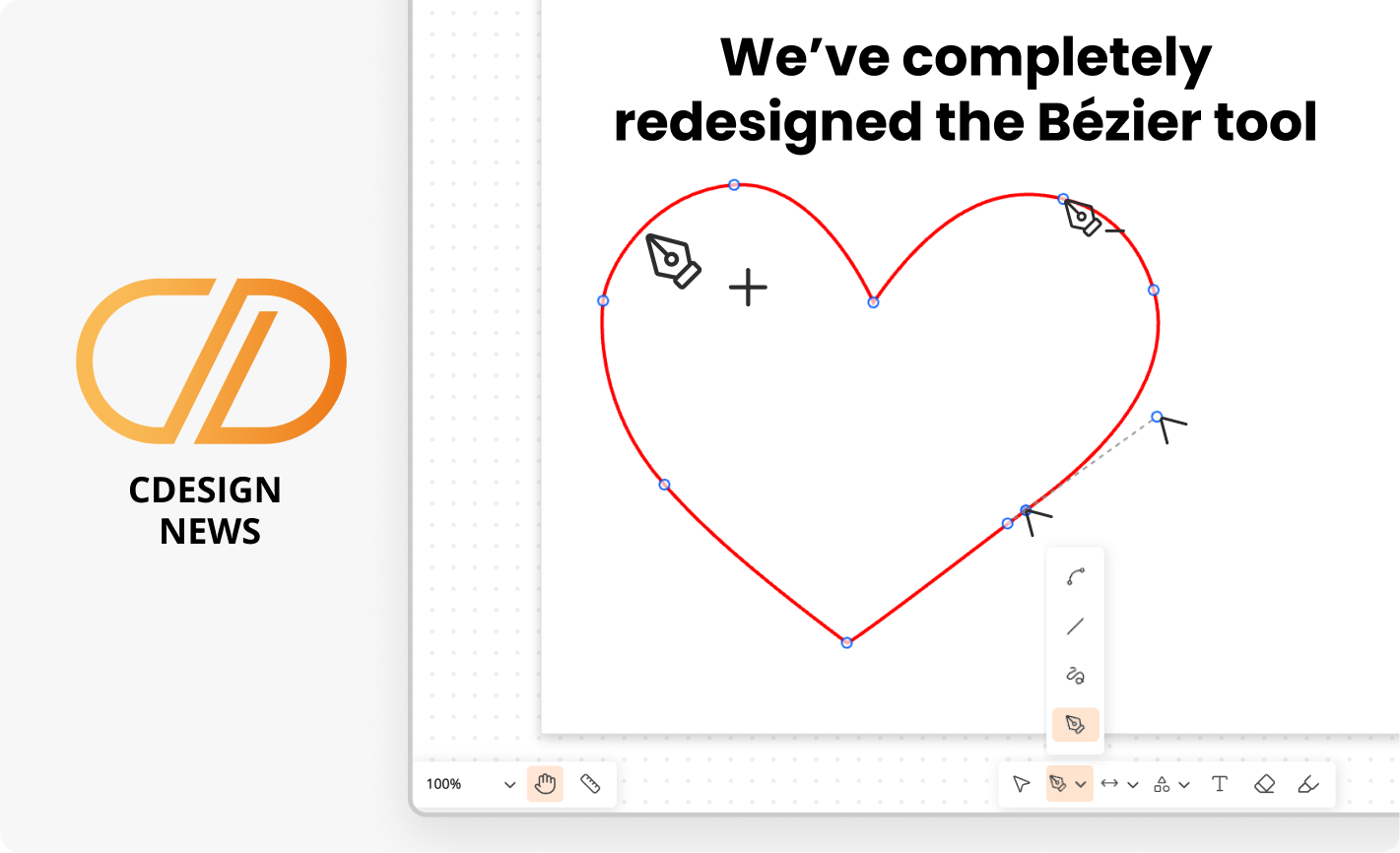
The wait is over: the Bézier drawing tool has been completely redesigned to give you a smoother, more precise and more intuitive experience.
Draw, adjust and customize your curves with ease:
- Edit your paths freely: easily add, delete and move points.
- Adjust your curves precisely using control handles.
- Add arrowheads to enhance your drawings.
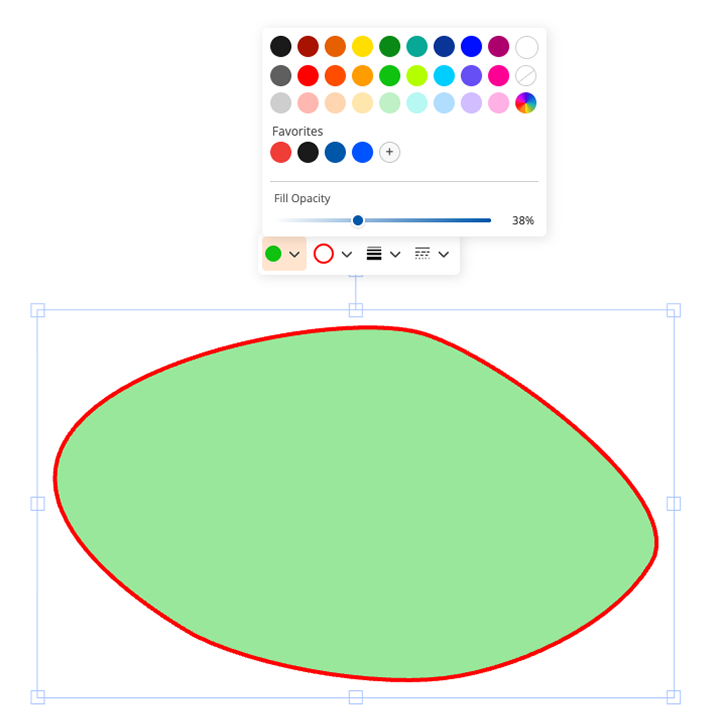
- Close your paths to apply a fill color.
- Customize your colors by adjusting fill and stroke transparency.
- Enjoy more precise control points for better control over your paths.
- Identify the active tool more easily with a cursor that changes appearance to match the current action.
A redesigned tool for greater freedom, precision and fluidity when creating your drawings!
Draw a line

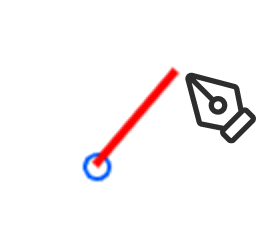
Place a point
Click on the canvas to place your first anchor point.

Create the curve
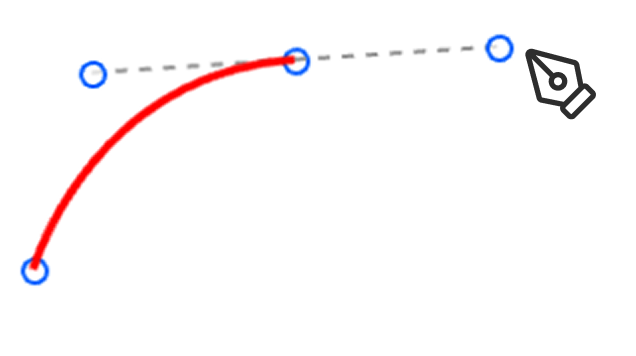
Click further along, then drag while holding the mouse button down to create a curved segment.

Adjust
Move the direction handles to adjust the curve.

Finish
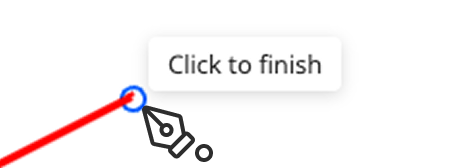
After the last point, press Enter or Esc or click the last point again to complete the path *.
Double-click to edit the line

Select and move a point or its handles
Move the cursor near a control point: the cursor changes appearance and the center of the point changes color to indicate that it is ready to be selected. Click the point to display its control handles.
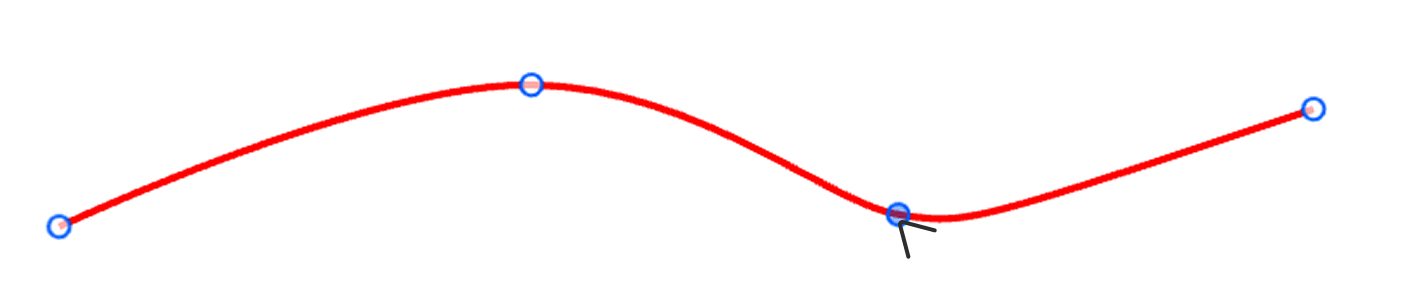
Move the point, or select and move a control handle to adjust the curve.


Add a point
Hold down Ctrl to add a point


Remove a point
Hold down Alt to remove a point

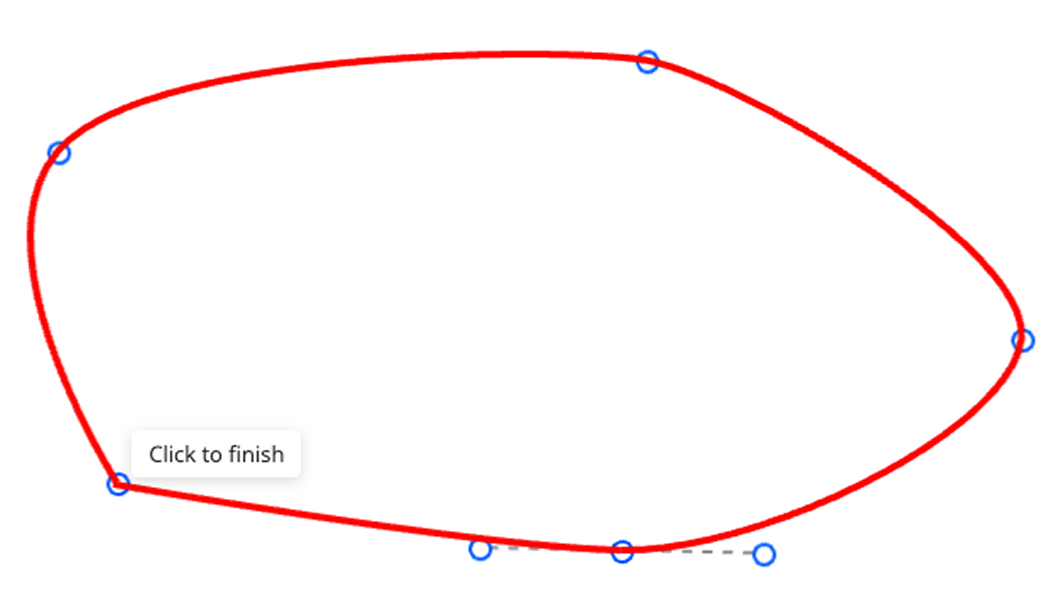
Close a shape

Return to the first point to close the shape *
Apply fill and stroke colors.
Adjust their transparency.
*Please note
- For now, using Ctrl + Z (or the “Undo” button at the top) removes the entire shape. Once the curve is complete, the software treats its creation as a single action.
- Once the shape is complete, you can no longer extend it from the first or last point, or close it later. Plan the desired shape ahead when creating your curve.
- These aspects may be improved in future based on your feedback.