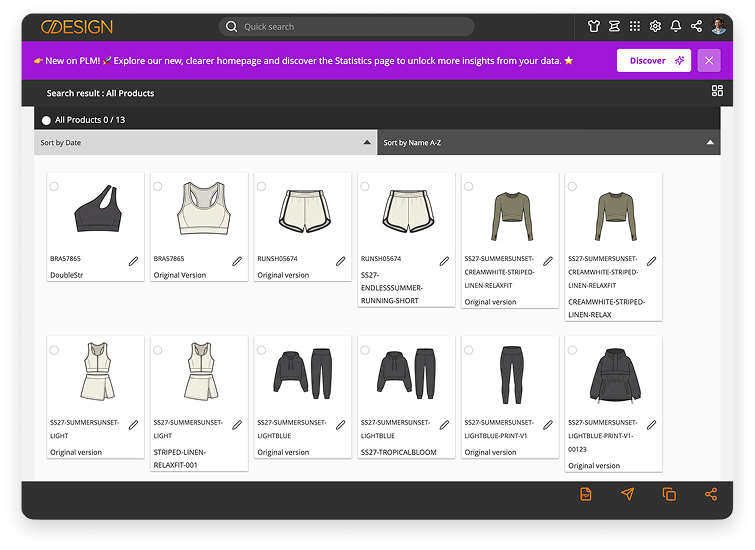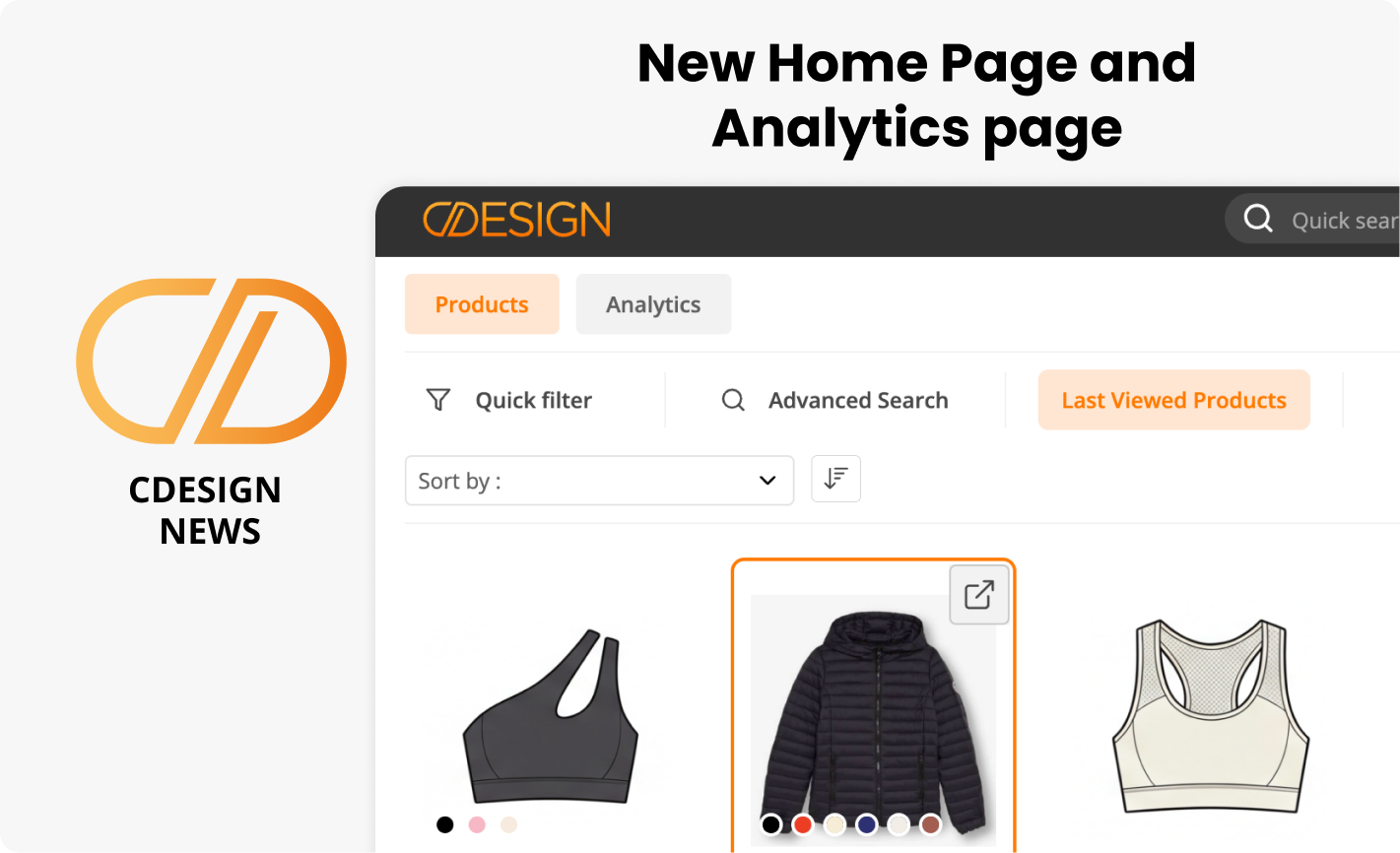
A new, clearer and more intuitive Home Page!
Your Home Page has been redesigned to offer you simpler and more efficient navigation every day.
- Choose whether to display the main colorway or main material for each product.
- Select multiple products to quickly perform bulk actions.
- Access your usual Dashboards directly from the Home Page.
- With the Quick Filter, easily choose which products you want to display.
- Instantly view the essential information using your saved presets.
- Access your Advanced Search page with one click.
- Analyze your data more easily with a new Statistics page, designed to give you a clear and customizable view of your performance and collections.
A new experience designed to give you faster access to the information and actions you need.
Choose what you prefer to see: Main Material or Product Colors?
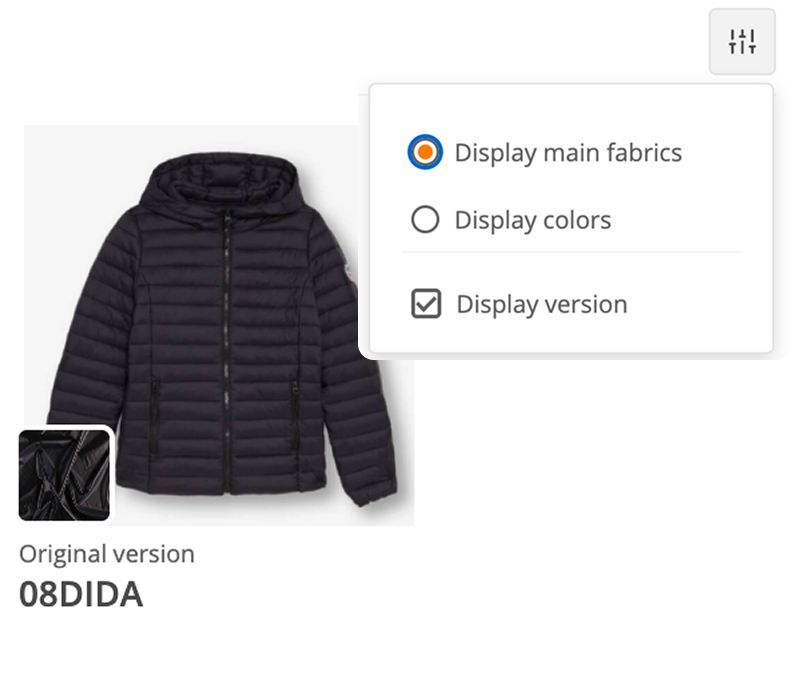
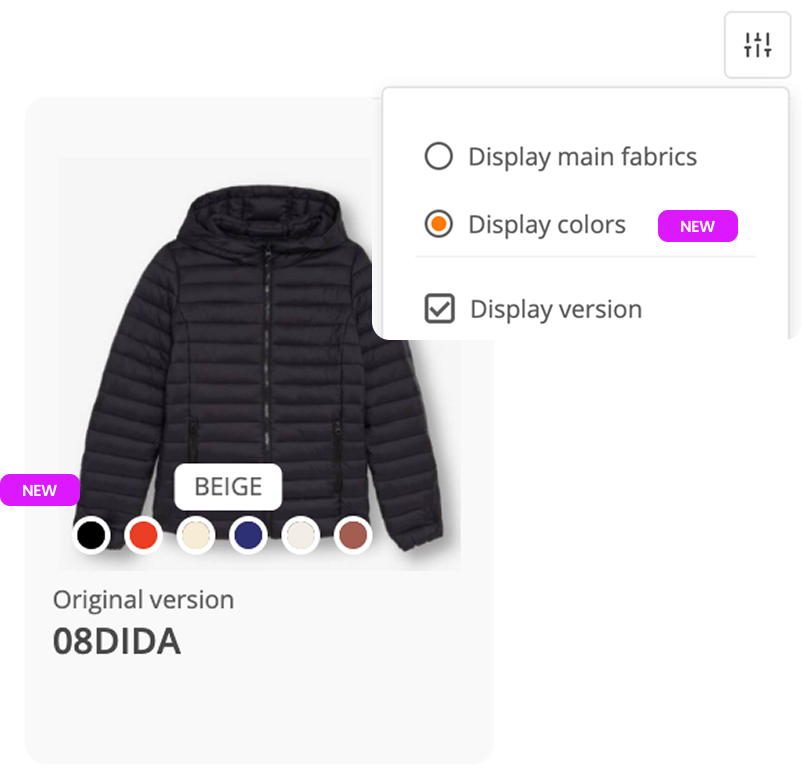
You can now directly view the colors of product color variants on the Home Page. Hover over the color swatch to display its name (same for the main material).
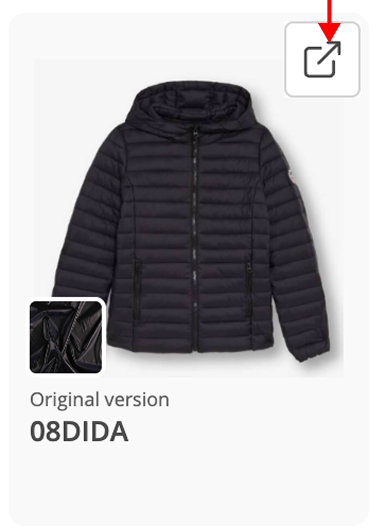
Hover over a product and open it directly by clicking the button in the top-right corner.
Click anywhere on a product to select it. You can do this manually or use the buttons at the bottom of the page.
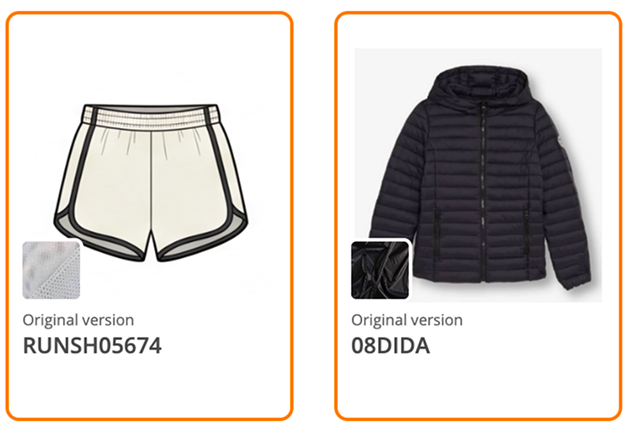
Tip: Hold down the Shift key and click on one product, then click on another product further down. All products between the two will be selected automatically.
When you select one or more products, you can access bulk actions.

Or create a Dashboard (D1, D2, etc.). Select products = results for these products. Select no products = results for all products.

Quick filter :
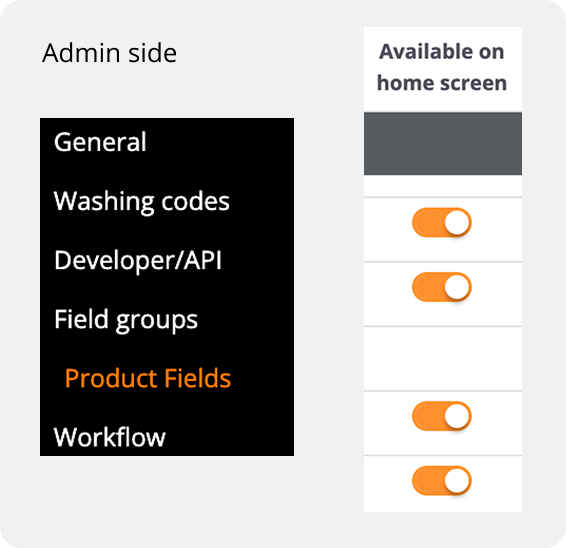
Filter the products you want to see on your Home Page. Filter by season, manufacturer, etc., according to your needs. You choose your filters in the Admin settings (up to 4 filters).

You can create a quick overview of the information that matters to you using your presets created in the Dashboards. Note that a “Back” button at the bottom-left allows you to return to the original Home Page.
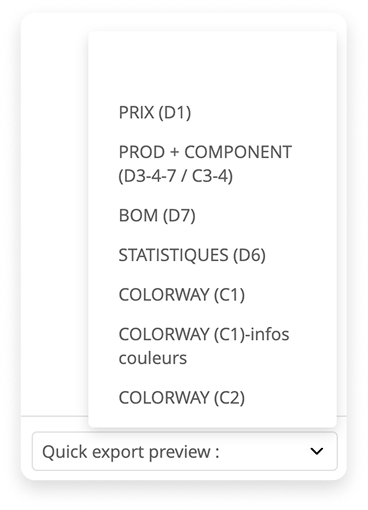
Once your products have been filtered, a button appears at the bottom-right. Select products = results for these products. Select no products = results for all products.

Discover the new Statistics page
Create your own custom Blocks/Widgets.
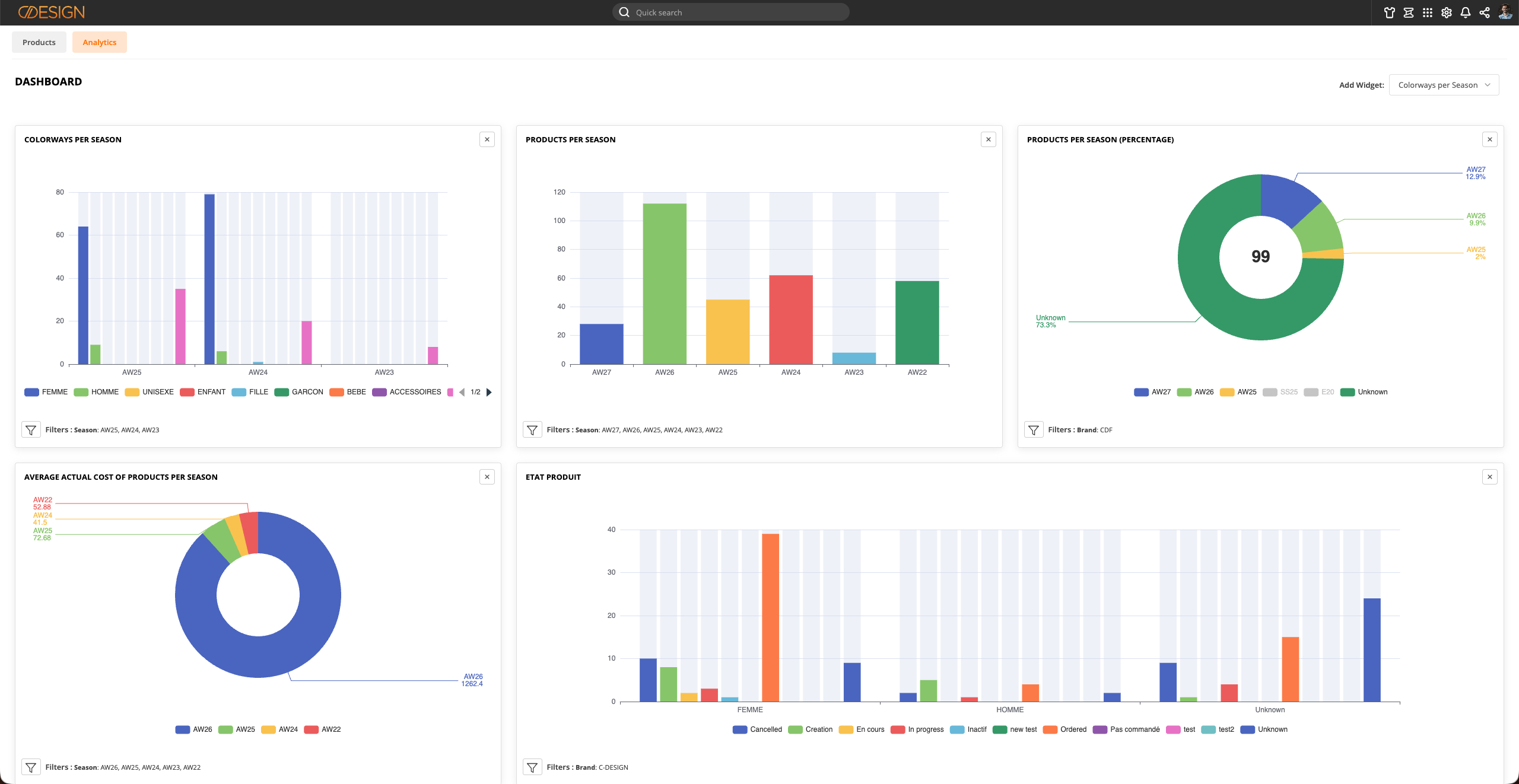
Analyze your data more easily with a new Analytics page, designed to give you a clear and customizable view of your performance and collections.

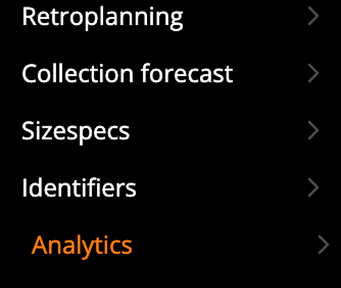
Step 1: Go to the Admin page and create your widgets.
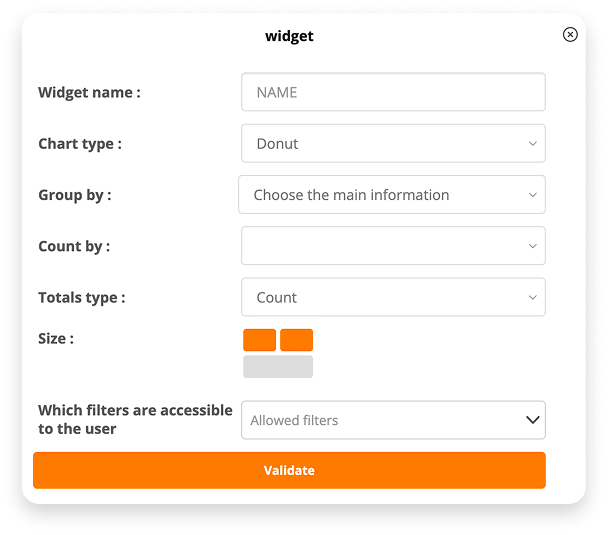
- Choose a name (free text field), e.g.: Products by Season
- Chart type: Bar or Donut
- Group by: in this example, Season
- Count by: Products (you can display products, colorways, or fields)
- Total type: Count (you can sort your results by Count, Average, or Percentage)
- Size: Half block (a full block will take up the full width of the screen on standard-resolution screens).
- Allowed filters (these are the filters the user will have access to on the Statistics page)
Build your Statistics page to suit your needs.
Step 2: Once the widgets have been created by the Admin, each user can create their own Analytics page by displaying the widgets they are interested in.

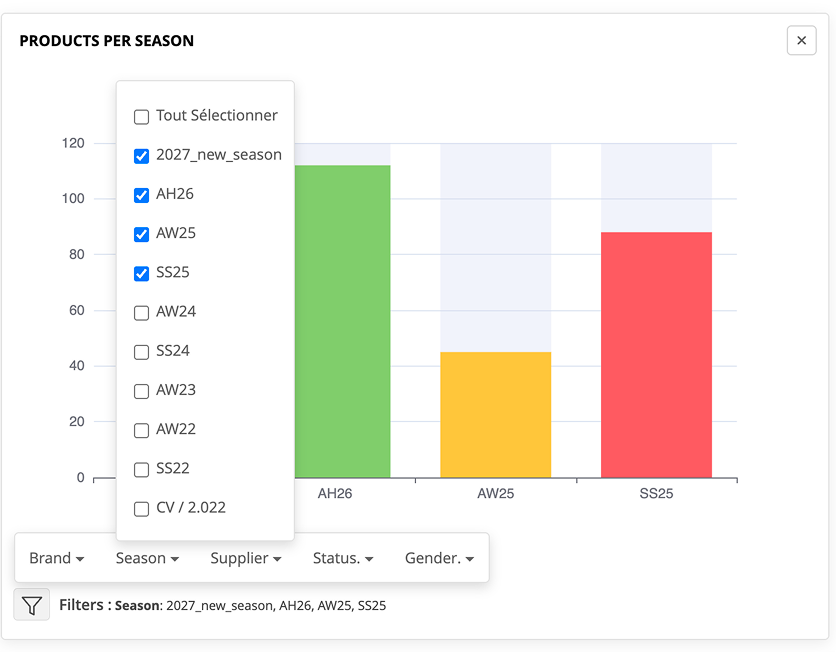
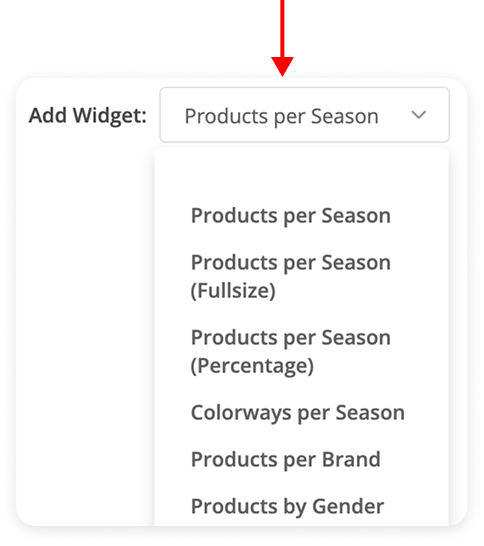
Step 3: When the widget opens, it is empty by default. Choose your filters to populate the chart with the information you are looking for.
You can then rearrange the widgets as you wish. Click on the widget name area and drag it into the position of another widget.
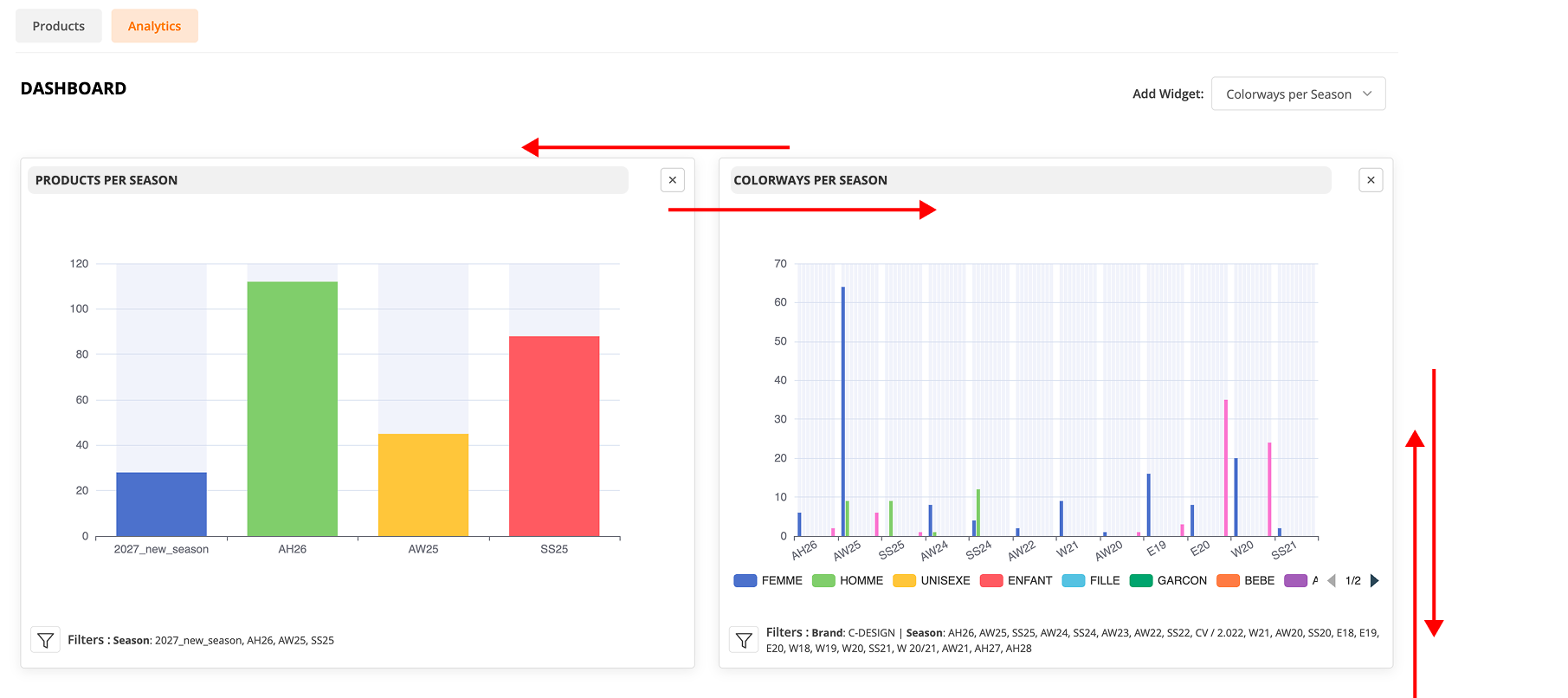
Visualize your results
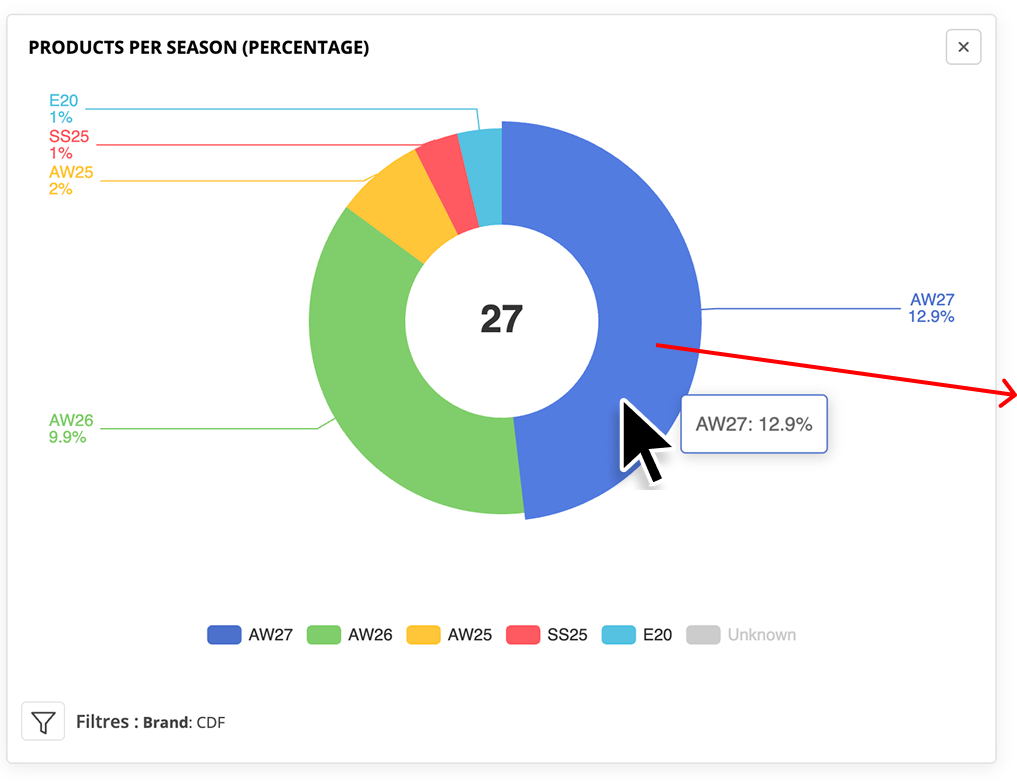
Click on a section of your chart to display the relevant products.