
New Zoom Feature in the Drawing Tool
Standard Mouse with Scroll Wheel
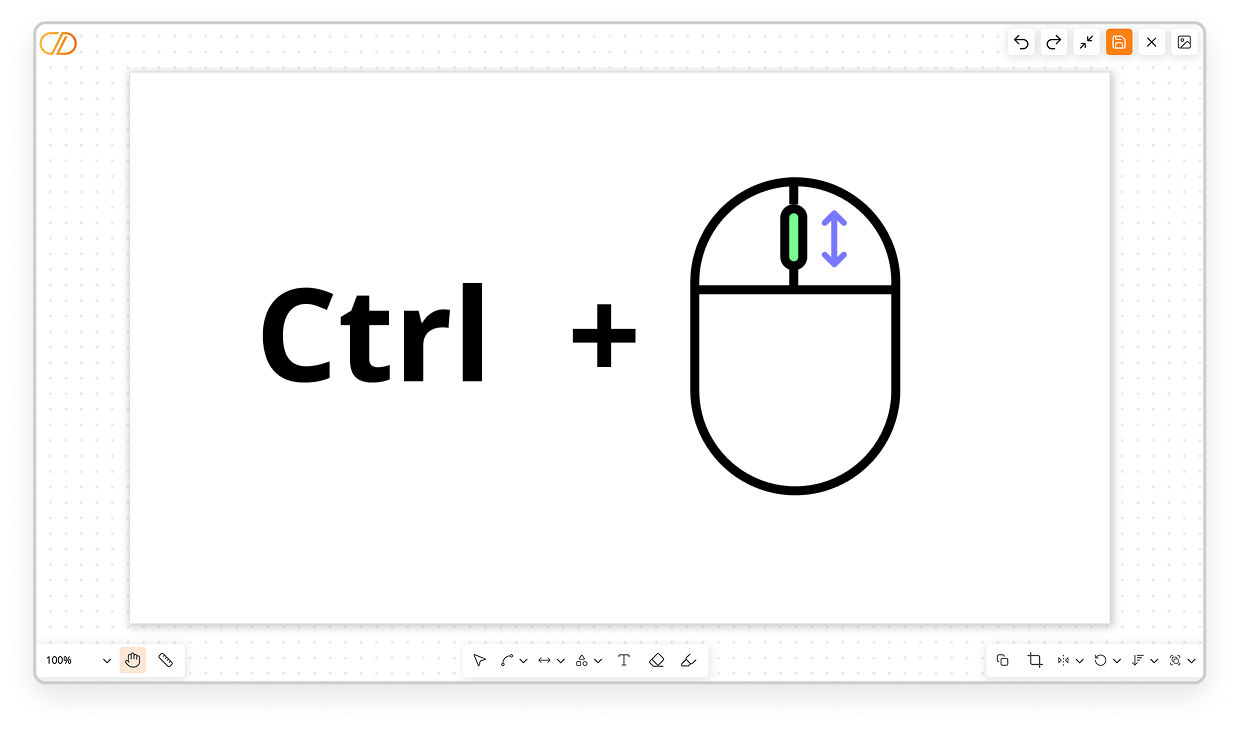
Zoom In and Zoom Out
Press Ctrl and use your mouse scroll wheel.- Scroll up to zoom in (max. 300%)
- Scroll down to zoom out (min. 20%)
Navigate Through the Zoomed Page: Using the Hand Tool

Once you have zoomed in, the Hand tool is selected by default.
The Hand tool allows you to move the image when zooming in beyond 100% and part of the image is no longer visible.
Navigate Through the Zoomed Page: Using the Mouse
If you only use the mouse wheel (without holding the Ctrl key), the page will scroll vertically (up/down).
Hold the Shift key while using the mouse wheel to scroll horizontally (left/right).
Recenter the View to 100%

Apple Mouse
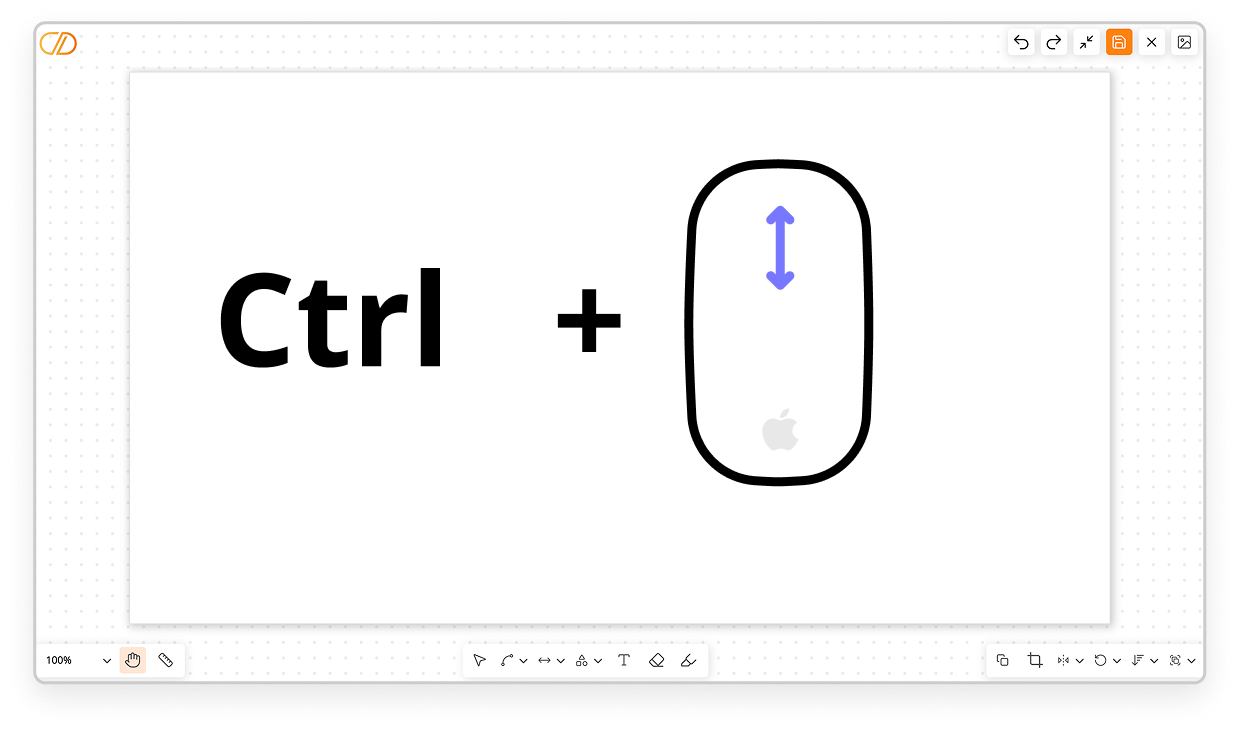
Zoom In and Zoom Out
Press Ctrl and slide your finger vertically on your Apple mouse.
- Slide upward to zoom in (max. 300%)
- Slide downward to zoom out (min. 20%)
Navigate Through the Zoomed Page: Using the Hand Tool
Once you have zoomed in, the Hand tool is selected by default.
The Hand tool allows you to move the image when zooming in beyond 100% and part of the image is no longer visible.
Navigate Through the Zoomed Page: Using the Mouse
Recenter the View to 100%
Trackpad
Zoom In and Zoom Out
Spread two fingers apart to zoom in; conversely, pinch with two fingers to zoom out.

Zoom in

Zoom out
Method 1: Navigate Through the Page Using Two Fingers
Once you have zoomed in, you can move around the page without clicking by sliding two fingers across the trackpad.Method 2: Using the Hand Tool
Once you have zoomed in, the Hand tool is selected by default.