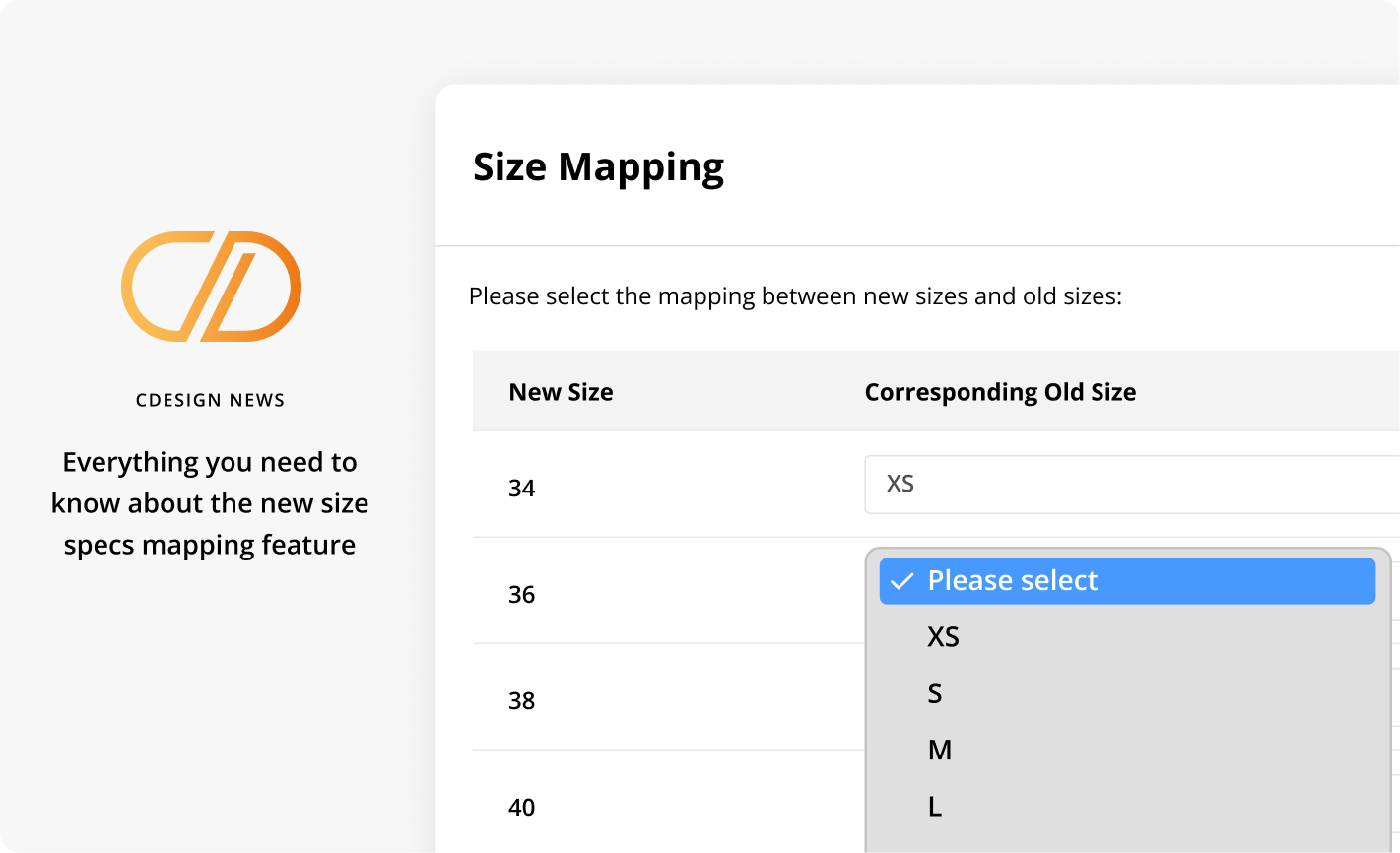
Update size sets in a measurement chart using simplified actions.
- Add or remove sizes more easily.
- Automatically detect inconsistencies between the chart sizes and the product sizes.
- Use the mapping feature to reconfigure the chart based on the product sizes.
- Update the product size list and synchronize the chart using mapping.
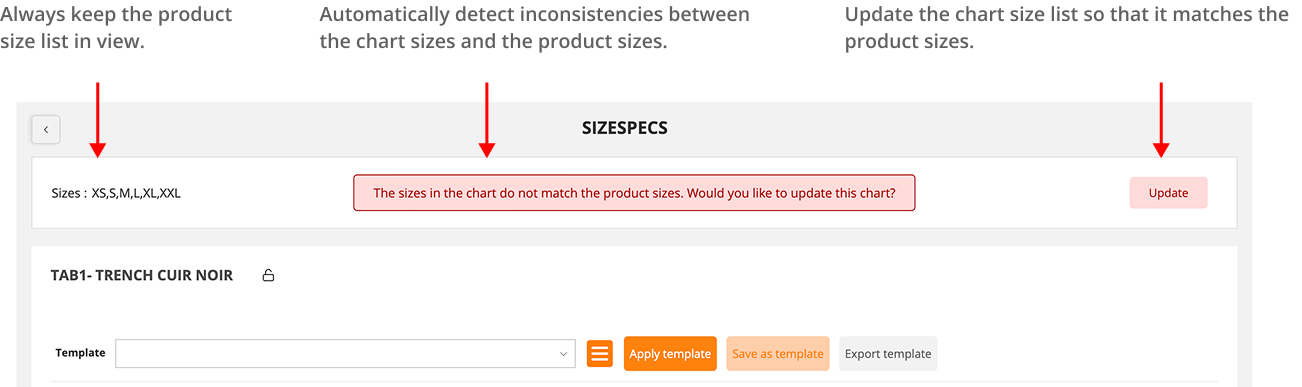
Whether you update the size list from the product details page, import a chart from another product, or use a template, the chart sizes may no longer exactly match the product sizes.

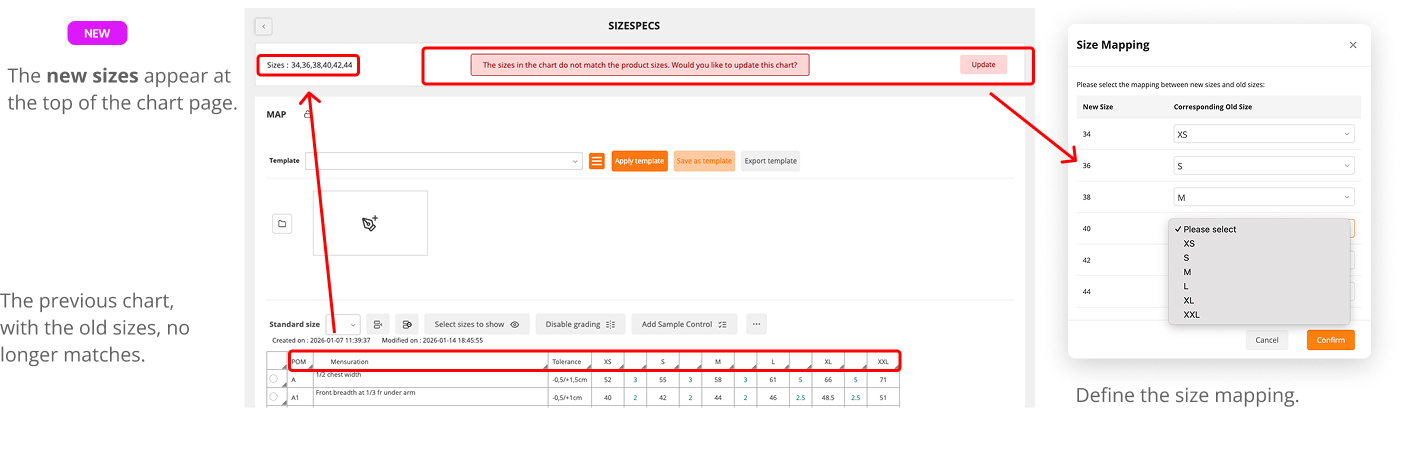
Inconsistencies between the chart sizes and the product sizes are immediately detected, and you are notified by an alert message.

Example:
New product sizes: 34, 36, 38, etc.
Old chart sizes to be updated: XS, S, M, L, etc.

A “Update” button allows you to update the chart with the product sizes by creating a size mapping.


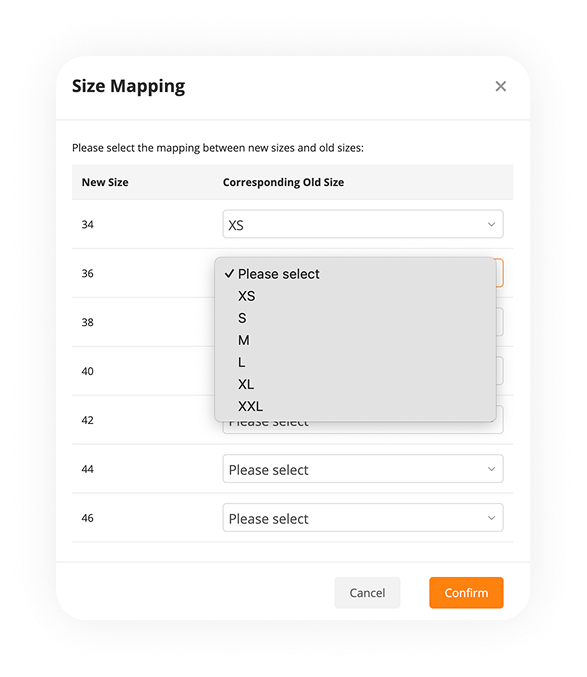
In the mapping pop-up, you can define the correspondence between old sizes and new sizes.
Example: 34 → XS.
Confirm, and your chart will be up to date.
A concrete example : If, on the Details page, you modify the product sizes …
for example by adding or removing a size, or by changing the product size grid—
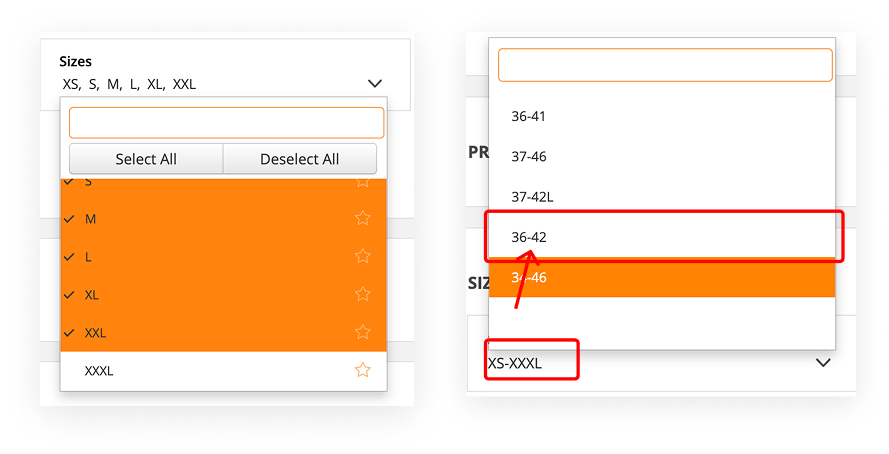
then, on the Measurement Chart page, an alert notifies you of the inconsistency.
Click the Update button, define the size mapping, and confirm so that your chart adapts to the new sizes.
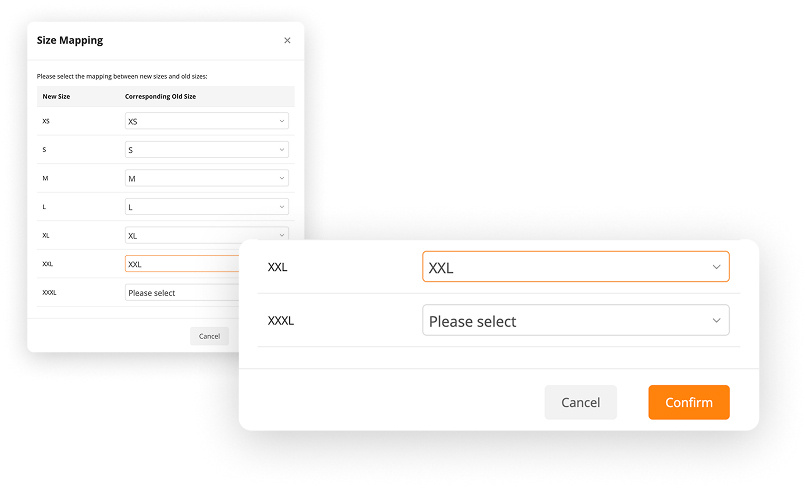
When adding a size

On the Measurement Chart page, the alert notifies you of the inconsistency.
Click the Update button, define the size mapping, and confirm so that your chart adapts to the new sizes.

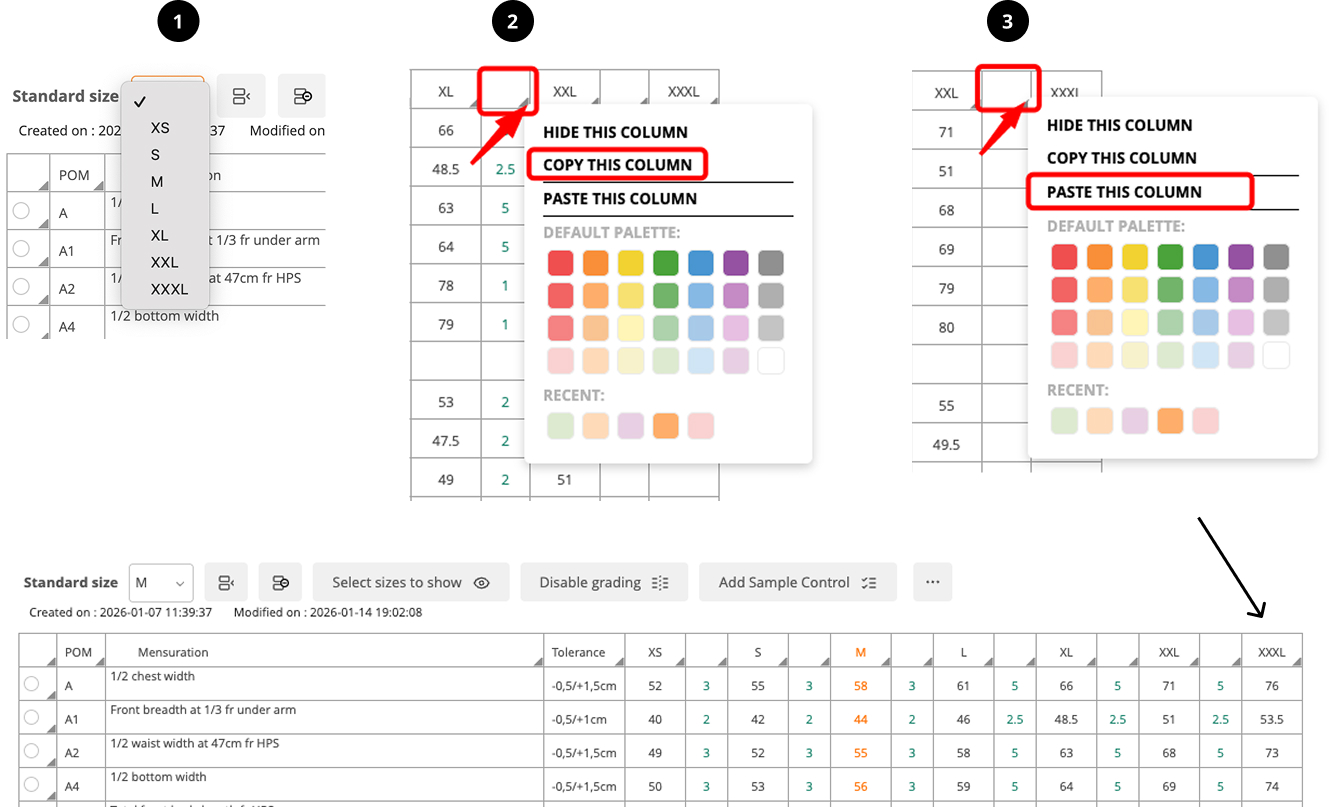
Two new empty columns appear: the grading and its associated size.
Tip: Automatically fill the last column by replicating the previous gradings.
- In First (Important), select the standard size.
- Copy the previous grading column.
- Paste it into the empty grading column.