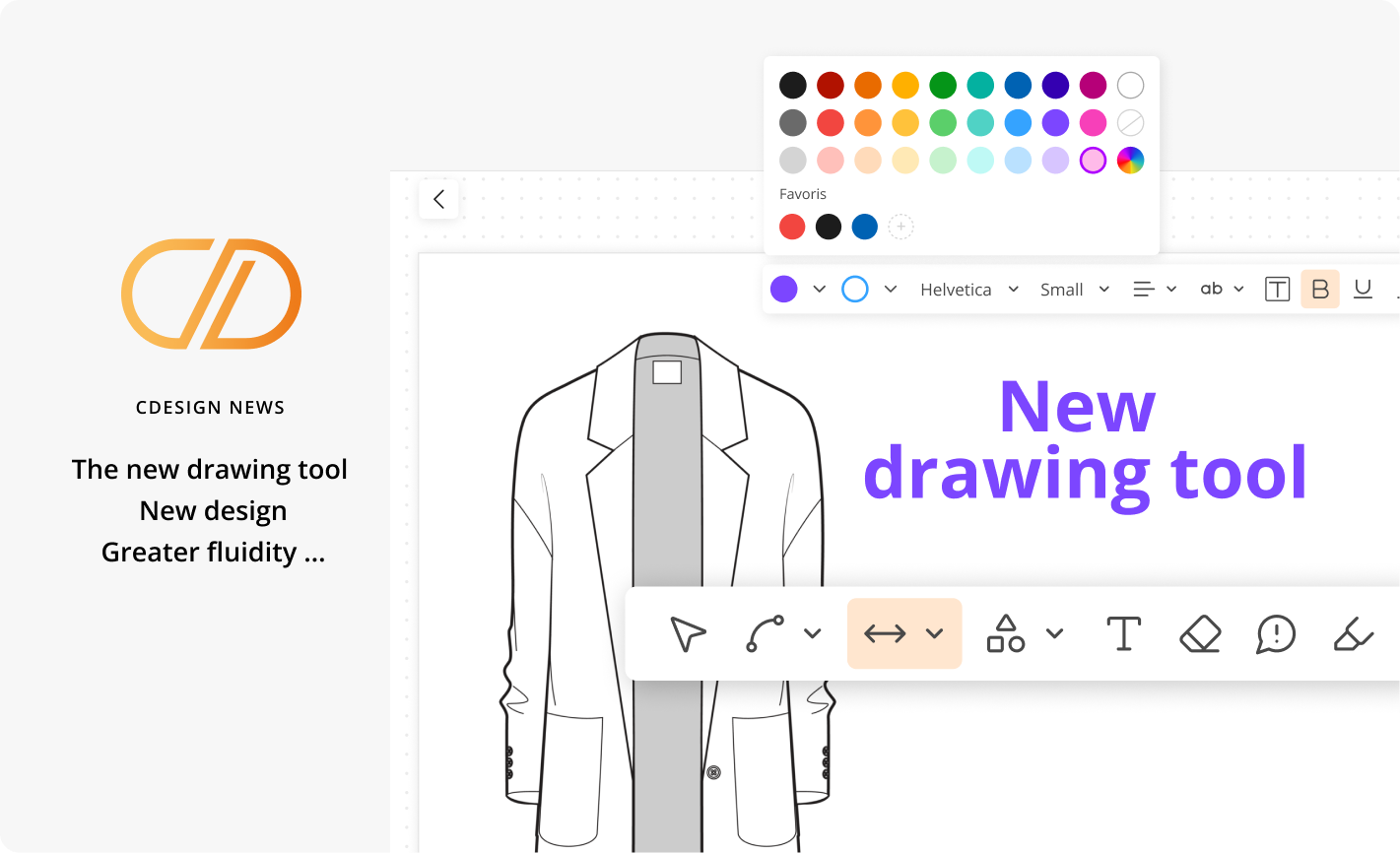
Discover the new version of CDESIGN drawing tool, redesigned for an even smoother and more intuitive experience.
- A larger, more ergonomic interface.
- More powerful tools to easily create and organize your drawings.
- A highlighter to emphasize specific details.
- Floating menus within easy reach.
- A side menu for quick access to media images, components, and backgrounds.
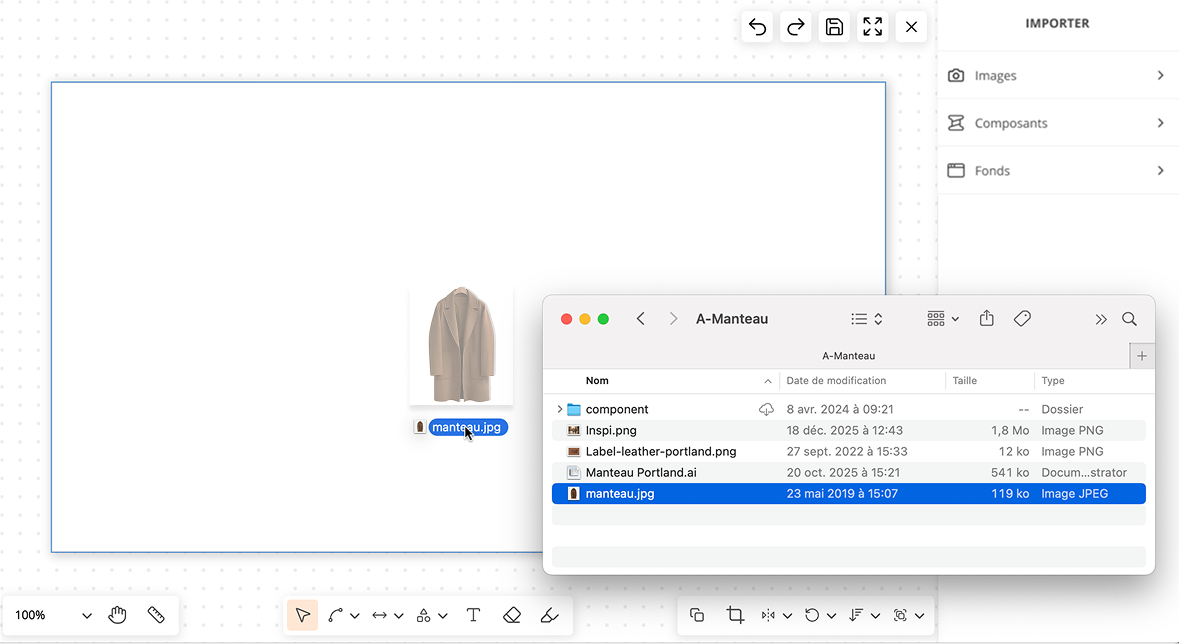
- Drag & drop directly from your computer.
- Copy / paste between different pages and different products.
- Pasting screenshots.
More practical, faster, more intuitive:
CDESIGN transforms the way you draw and collaborate.
Your new drawing interface
The drawing interface provides a clear and spacious workspace, designed for intuitive handling and smooth, precise, and efficient creation.
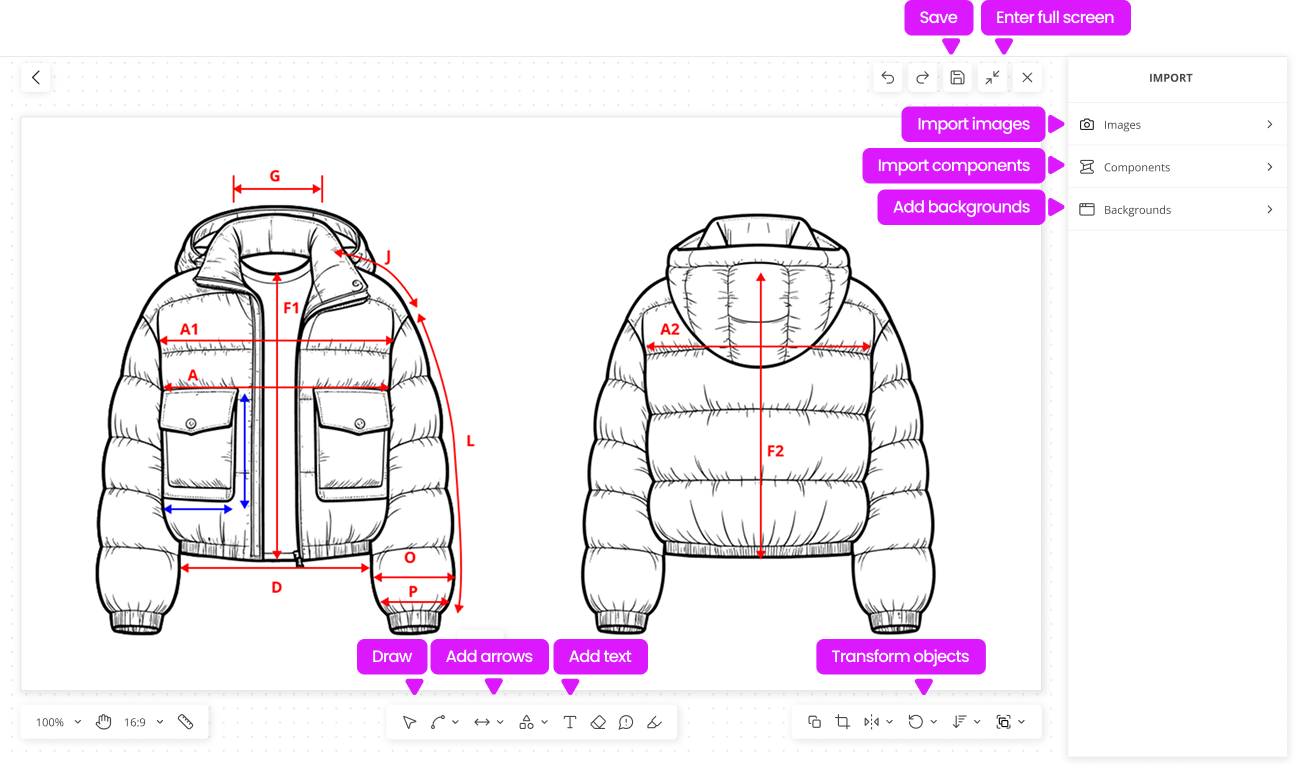
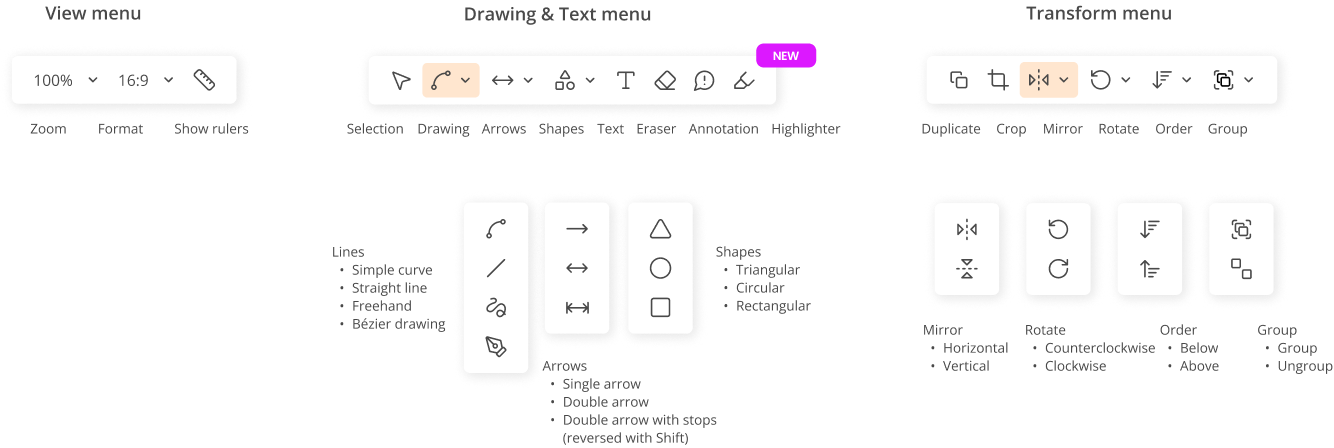
Find your main drawing and transformation tools.
You’ll find your usual drawing tools, enhanced and optimized for an even smoother, faster, and more powerful experience.
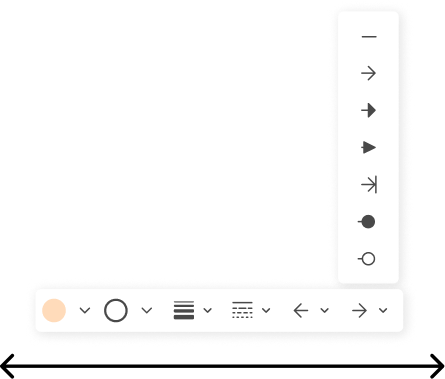
The arrow tool is much more convenient.
Customize your arrows using the movable endpoints: extend them, reposition them, and adjust the line or arrowhead to suit your needs.
💡 Tip: Hold the Alt key while drawing a line or arrow to constrain it to a straight path.
For arrows with stops, hold Shift to reverse their direction.
The “Crop” tool, simplified.
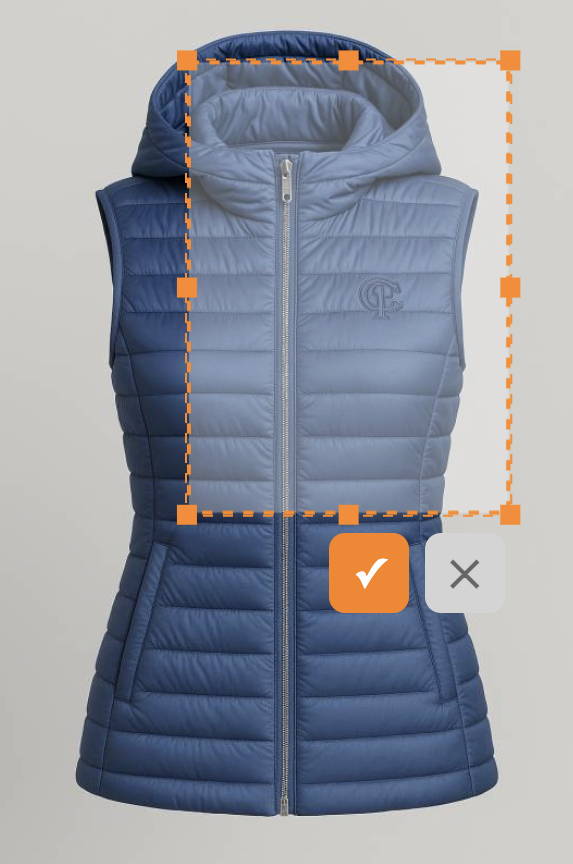
Draw a frame around the area you wish to keep, adjust the selection as needed, then click the confirm button to validate.
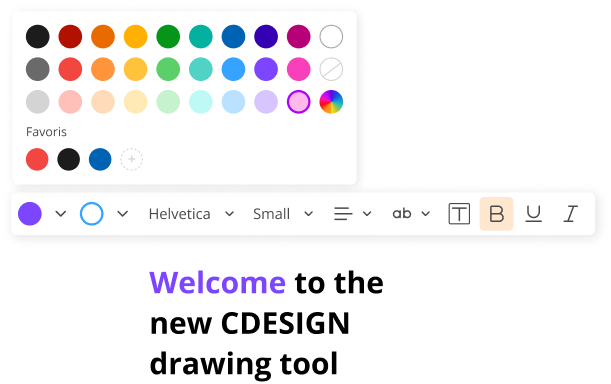
Edit your text from this menu: color, font, alignment, etc.
The import menu
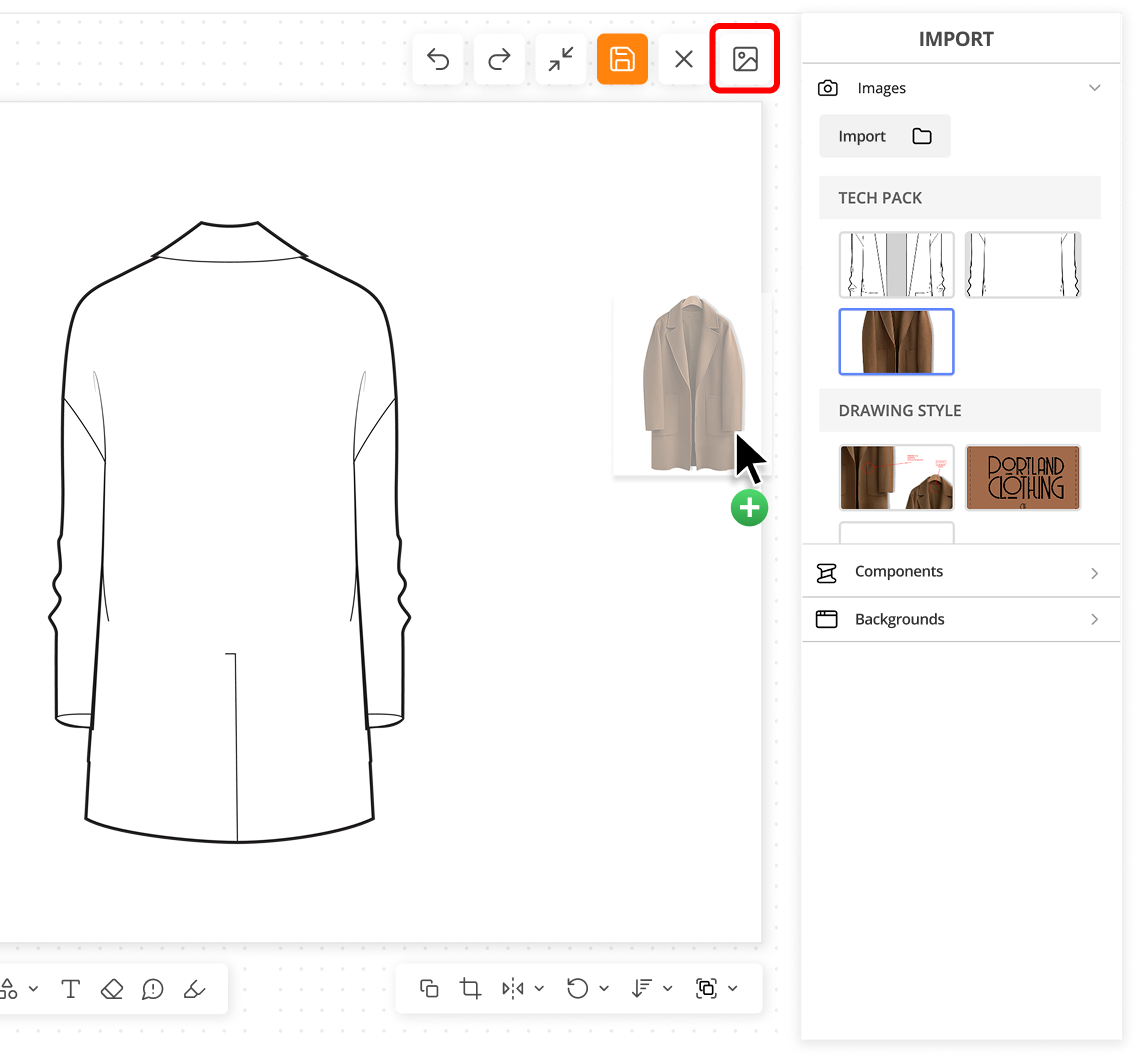
New ways to add an image
-
Paste a screenshot
-
Copy and paste from one page to another, or from one product to another
-
Drag & drop one or more pictures from your computer